

clp-json quick-start#
This page will walk you through how to start CLP and use it to compress and search JSON logs.
Note
clp-json doesn’t support directly ingesting unstructured text logs. For ingesting unstructured text logs, refer to this section below.
Starting CLP#
To start CLP, run:
sbin/start-clp.sh
Tip
To validate configuration and prepare directories without launching services, add the --setup-only
flag (e.g., sbin/start-clp.sh --setup-only). To use external databases or other third-party
services instead of bundled services, see the
external database guide.
Note
If CLP fails to start (e.g., due to a port conflict), try adjusting the settings in
etc/clp-config.yaml and then run the start command again.
First, create a kind cluster:
# Host port mappings
export CLP_WEBUI_PORT=30000
export CLP_RESULTS_CACHE_PORT=30017
export CLP_API_SERVER_PORT=30301
export CLP_LOG_INGESTOR_PORT=30302
export CLP_DATABASE_PORT=30306
export CLP_MCP_SERVER_PORT=30800

# Credentials (generate random or use your own)
export CLP_DB_PASS=$(openssl rand -hex 16)
export CLP_DB_ROOT_PASS=$(openssl rand -hex 16)
export CLP_QUEUE_PASS=$(openssl rand -hex 16)
export CLP_REDIS_PASS=$(openssl rand -hex 16)

# Create the `kind` cluster
cat <<EOF | kind create cluster --name clp --config=-
kind: Cluster
apiVersion: kind.x-k8s.io/v1alpha4
nodes:
- role: control-plane
  extraMounts:
  # Mount for logs input (change the paths as needed; not needed if using S3 input)
  - hostPath: /home
    containerPath: /home

  extraPortMappings:
  - containerPort: $CLP_WEBUI_PORT
    hostPort: $CLP_WEBUI_PORT
  - containerPort: $CLP_RESULTS_CACHE_PORT
    hostPort: $CLP_RESULTS_CACHE_PORT
  - containerPort: $CLP_API_SERVER_PORT
    hostPort: $CLP_API_SERVER_PORT
  - containerPort: $CLP_LOG_INGESTOR_PORT
    hostPort: $CLP_LOG_INGESTOR_PORT
  - containerPort: $CLP_DATABASE_PORT
    hostPort: $CLP_DATABASE_PORT
  - containerPort: $CLP_MCP_SERVER_PORT
    hostPort: $CLP_MCP_SERVER_PORT
EOF
Then, install the Helm chart:
helm repo add clp https://y-scope.github.io/clp
helm repo update clp

helm install clp clp/clp --devel \
  --set clpConfig.telemetry.disable=false \
  --set clpConfig.webui.serviceType=NodePort \
  --set clpConfig.webui.port="$CLP_WEBUI_PORT" \
  --set clpConfig.results_cache.port="$CLP_RESULTS_CACHE_PORT" \
  --set clpConfig.api_server.serviceType=NodePort \
  --set clpConfig.api_server.port="$CLP_API_SERVER_PORT" \
  --set clpConfig.log_ingestor.serviceType=NodePort \
  --set clpConfig.log_ingestor.port="$CLP_LOG_INGESTOR_PORT" \
  --set clpConfig.database.port="$CLP_DATABASE_PORT" \
  --set clpConfig.mcp_server.serviceType=NodePort \
  --set clpConfig.mcp_server.port="$CLP_MCP_SERVER_PORT" \
  --set credentials.database.password="$CLP_DB_PASS" \
  --set credentials.database.root_password="$CLP_DB_ROOT_PASS" \
  --set credentials.queue.password="$CLP_QUEUE_PASS" \
  --set credentials.redis.password="$CLP_REDIS_PASS"
Wait for all pods to be ready:
kubectl wait pods --all --for=condition=Ready --timeout=300s
Update the following configurations in etc/clp-config.yaml:
database:
  port: 30306

results_cache:
  port: 30017
Compressing JSON logs#
To compress some JSON logs, run:
sbin/compress.sh --timestamp-key '<timestamp-key>' <path1> [<path2> ...]
<timestamp-key>is the field path of the kv-pair that contains the timestamp in each log event.E.g., if your log events look like
{"timestamp": {"iso8601": "2024-01-01 00:01:02.345", ...}}, you should entertimestamp.iso8601as the timestamp key.
Caution
Log events without the specified timestamp key will not have an assigned timestamp. Currently, these events can only be searched from the command line (when you don’t specify a timestamp filter).
<path...>are paths to JSON log files or directories containing such files.Each JSON log file should contain each log event as a separate JSON object, i.e., not as an array.
The compression script will output the compression ratio of each dataset you compress, or you can use the UI to view overall statistics.
Compressed logs will be stored in the directory specified by the archive_output.storage.directory
config option in etc/clp-config.yaml (archive_output.storage.directory defaults to
var/data/archives).
Tip
To compress logs from object storage, see Using object storage.
Compressing unstructured text logs#
clp-json supports compressing unstructured text logs by converting them into JSON. To enable this
conversion, run the compression script with the --unstructured flag:
sbin/compress.sh --unstructured <path1> [<path2> ...]
When --unstructured is specified, clp-json will parse the unstructured text and convert each log
event into a JSON object. During this conversion, it attempts to extract the timestamp and log
message from each log event and store them as separate key-value pairs. The resulting JSON object
includes:
"timestamp": The extracted timestamp, stored as its original string representation to preserve the timestamp format."message": The original log message.
For example, a log event like:
2024-01-01 00:01:02.345 ERROR...
will be converted into:
{
  "timestamp": "2024-01-01 00:01:02.345",
  "message": " ERROR..."
}
Note
When the --unstructured flag is used, clp-json will always use "timestamp" as the timestamp key.
Sample logs#
For some sample logs, check out the open-source datasets.
Searching JSON logs#
You can search your compressed logs from CLP’s UI or the command line.
In clp-json, queries are written as a set of conditions (predicates) on key-value pairs (kv-pairs). For example, Figure 1 shows a query that matches the first log event in Figure 2.
ctx: "conn11" AND msg: "*write concern*"
{
  "t": {
    "$date": "2023-03-21T23:46:37.392"
  },
  "ctx": "conn11",
  "msg": "Waiting for write concern."
}
{
  "t": {
    "$date": "2023-03-21T23:46:37.392"
  },
  "msg": "Set last op to system time"
}
The query in Figure 1 will match log events that contain the kv-pair "ctx": "conn11"
as well as a kv-pair with key "msg" and a value that matches the wildcard query
"*write concern*".
A complete reference for clp-json’s query syntax is available on the syntax reference page.
Searching from the UI#
To search your compressed logs from CLP’s UI, open the following URL in your browser:
Note
If you changed webui.host or webui.port in the configuration, use the new values.
Figure 3 shows the search page after running a query.
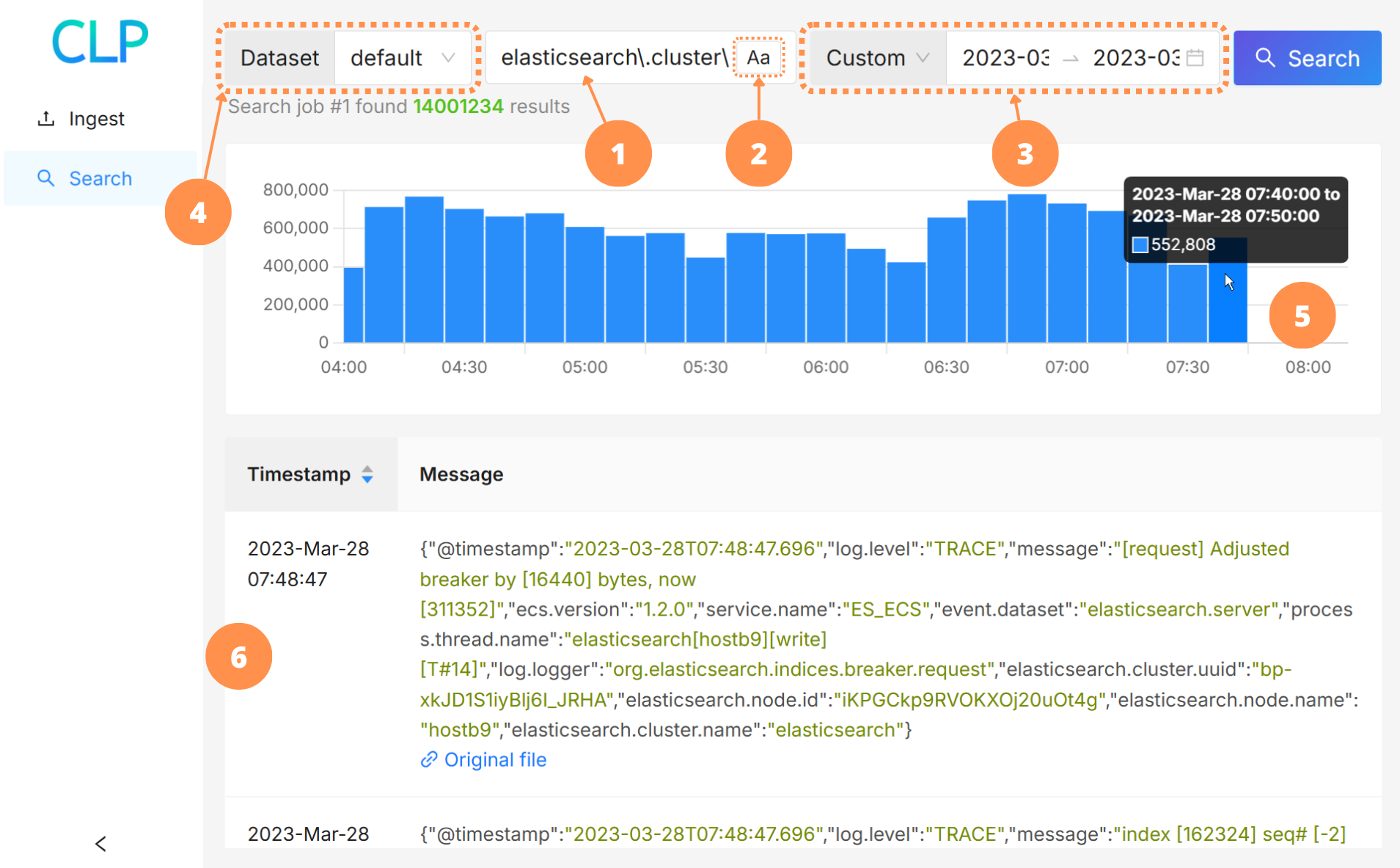
The numbered circles in Figure 3 correspond to the following elements:
The query input box. The format of your query should conform to CLP’s JSON search syntax.
The query case-sensitivity toggle. When turned on, CLP will search for log events that match the case of your query.
The time range selector. CLP will search for log events that are in the specified time range. You can select a preset filter (e.g.,
Last 15 minutes;Yesterday) from the dropdown, or chooseCustomand set the start time and end time directly.The dataset selector. CLP will search for log events that belong to the selected datasets.
The search results timeline. After a query, the timeline will show the number of results across the time range of your query.
You can click and drag to zoom into a time range.
When you mouse over a bar in the timeline, a popup will display the range and the number of search results in that range.
The search results.
You can sort by
AscendingorDescendingtimestamp by clicking theTimestampheader in the table.Each search result includes a link to the original file in which the log event was found.
Note
By default, the UI will only return 1,000 of the latest search results. To perform searches which return more results, use the command line or API server.
Searching via the API server#
To search via the API server:
curl -X POST "http://localhost:3001/query/submit" \
  -H "Content-Type: application/json" \
  -d '{
    "query_string": "<query>",
    "max_num_results": 1000,
    "timestamp_begin": null,
    "timestamp_end": null,
    "case_sensitive": false
  }'
curl -X POST "http://localhost:30301/query/submit" \
  -H "Content-Type: application/json" \
  -d '{
    "query_string": "<query>",
    "max_num_results": 1000,
    "timestamp_begin": null,
    "timestamp_end": null,
    "case_sensitive": false
  }'
Note
If you changed api_server.host or api_server.port in the configuration, use the new values.
For more details on the API, see Using the API server.
Searching from the command line#
To search your compressed logs from the command line, run:
sbin/search.sh '<query>'
To narrow your search to a specific time range:
Add
--begin-time <epoch-timestamp-millis>to filter for log events after a certain time.<epoch-timestamp-millis>is the timestamp as milliseconds since the UNIX epoch.
Add
--end-time <epoch-timestamp-millis>to filter for log events before a certain time.
To search within specific datasets, add --dataset <name> for each dataset. This flag can be
specified multiple times, e.g. --dataset ds1 --dataset ds2. If not specified, the default dataset
will be searched.
To perform case-insensitive searches, add the --ignore-case flag.
Caution
To match the convention of other tools, by default, searches are case-insensitive in the UI and searches are case-sensitive on the command line.
Stopping CLP#
If you need to stop CLP, run:
sbin/stop-clp.sh
To stop CLP, uninstall the Helm release:
helm uninstall clp
To also delete the kind cluster:
kind delete cluster --name clp